
How To
How to Use GitHub Copilot: Setup Guide for 2026
Here’s how most people’s first day with GitHub Copilot goes. Install it, type a few lines, watch it guess wrong once, close the tab. Yeah, I’d have done that too. What they miss is that Copilot isn’t one feature. It’s four or five different ways of talking to a model, and each one fits a different job.
This guide gets you set up in whichever editor you use, then covers chat, agent mode, shortcuts and the terminal version. Still weighing the cost? The GitHub Copilot pricing review has every plan laid out. This page is just about using it.
Copilot in Plain English, and What You Need to Begin
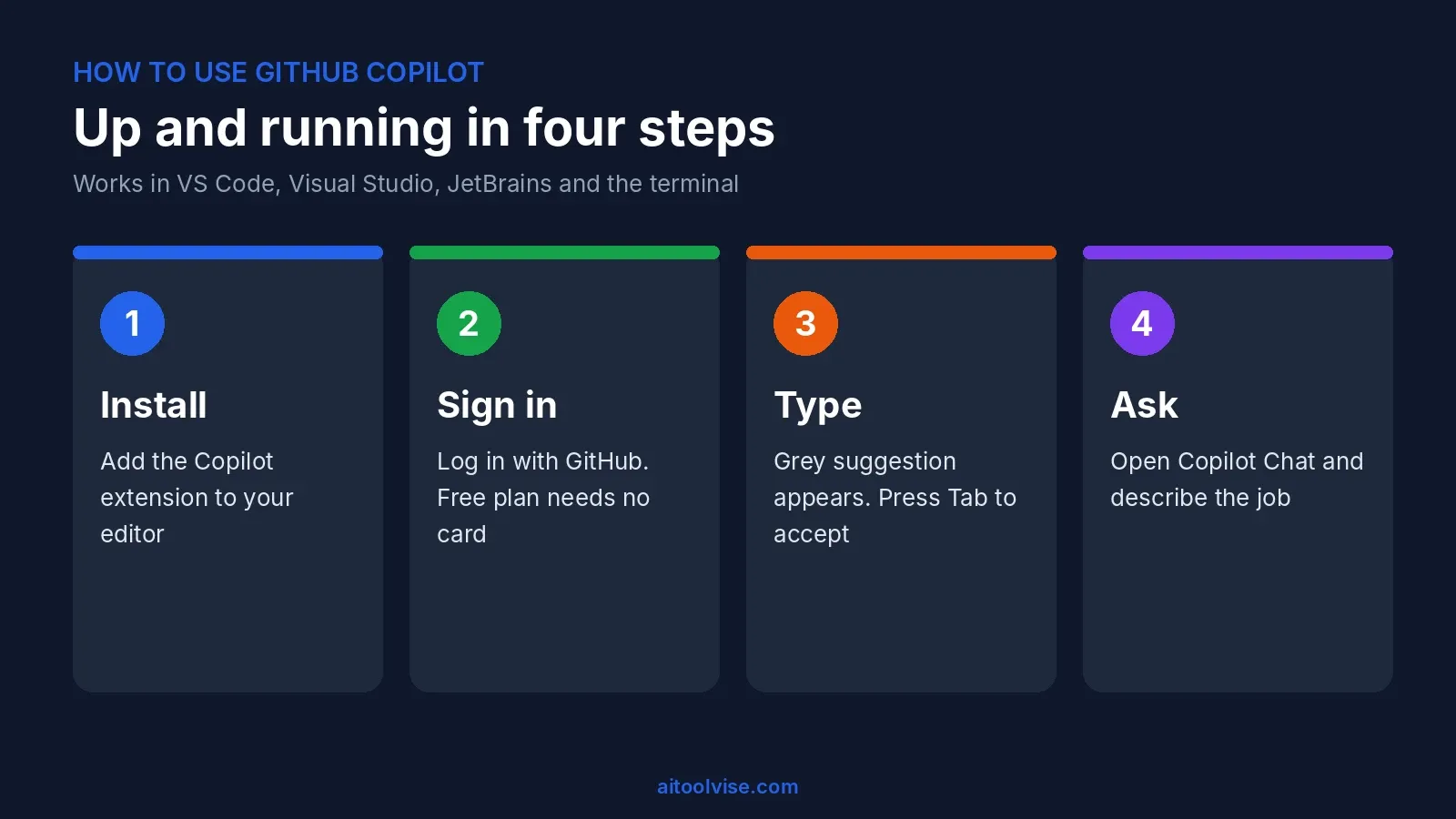
Copilot is basically a coding helper that sits inside your editor. While you type, it tries to finish your line. If you ask it something, it looks at the files you’ve got open and answers from those. And when you’ve got a bigger job, you can switch to agent mode and let it change a few files at once, then check what it did. It isn’t only in the editor either. GitHub says you can get to it from GitHub Mobile, the command line, the website and a desktop app too.
Getting started takes less than you’d expect. You need a free GitHub account, a Copilot plan (Free works fine here), and an editor that supports the extension: VS Code, Visual Studio, a JetBrains IDE, Eclipse or Xcode. The Free plan doesn’t ask for a card, and your project doesn’t need any setup.
Is GitHub Copilot Free? What the Free Plan Covers
It’s free, but with strings attached. You get 2,000 completions a month, limited chat and restricted agent access. Chat on Free picks the model for you, so there’s no model menu to play with.
Is that enough? For a weekend project or a week of learning, sure. For a full-time job, you’ll hit the wall quick. Pro is $10 a month and drops the completion cap, and paid plans run on monthly AI credits, which the pricing review untangles. My advice? Spend a week on Free first. You’ll notice which feature you keep reaching for, and that’s the one worth paying for.
Free access for students
Verified students get the Student plan at no cost. Completions are unlimited and auto model selection is included, but third-party agents aren’t. You apply through GitHub’s education benefits page. Approval can take a few days, so don’t leave it until the night before a deadline. Teachers and popular open source maintainers can also qualify for free Pro access.
How to Use GitHub Copilot in VS Code
VS Code is the easiest place to start. The setup is almost automatic.
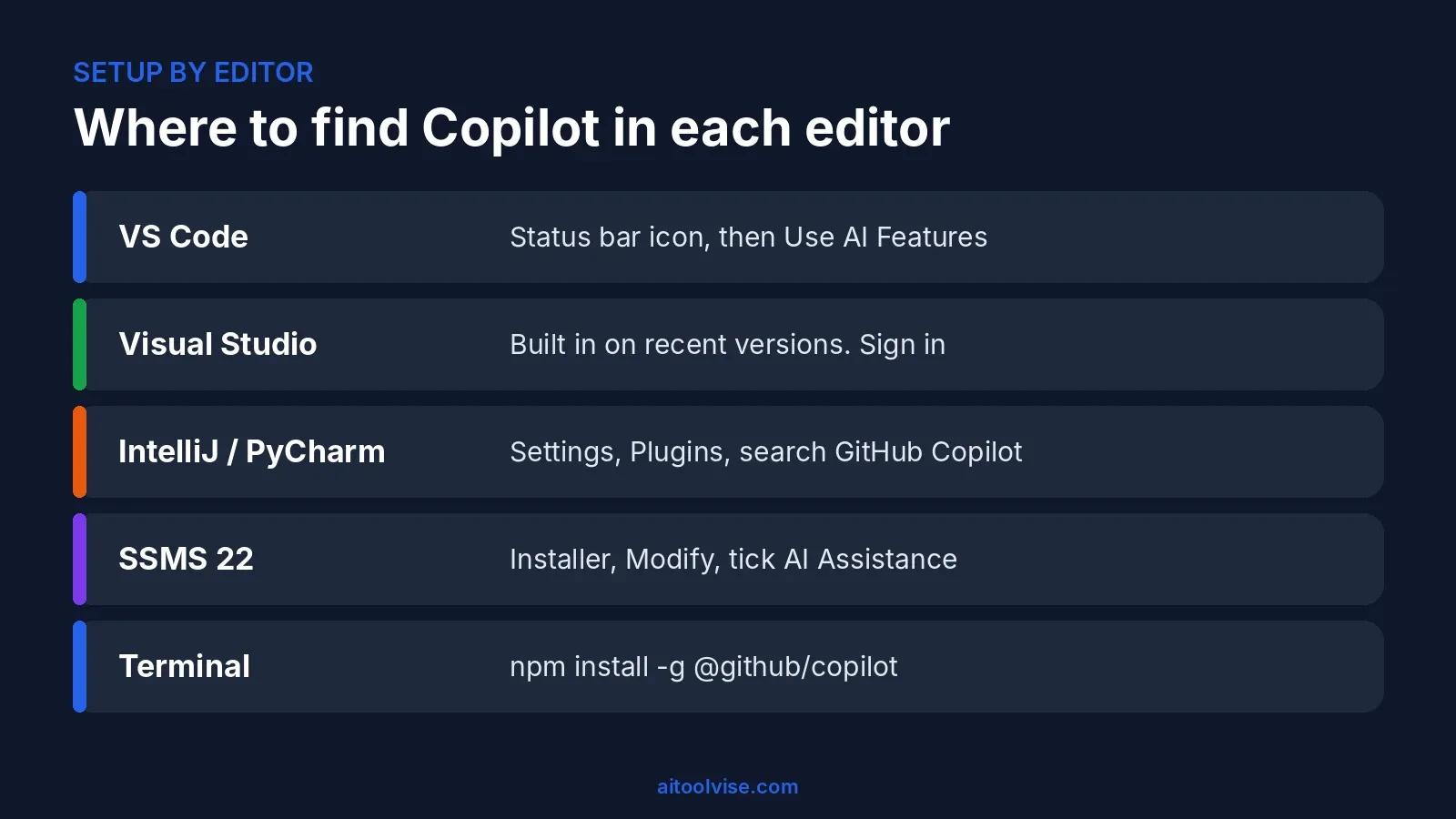
- Open VS Code and hover over the Copilot icon in the status bar.
- Choose Use AI Features.
- Pick a sign-in method and follow the prompts. Already have a Copilot plan? VS Code uses it. No plan? You’re signed up for Free.
Now test it. Make a new file called test.js and type this:
function calculateDaysBetweenDates(begin, end) {A grey suggestion should appear. Press Tab to accept it. That’s the whole inline loop. You type, it guesses, you take it or shrug it off. Nothing showing? Check you’re signed in (the status bar icon tells you) and that the file has a proper extension, because Copilot needs to know the language.
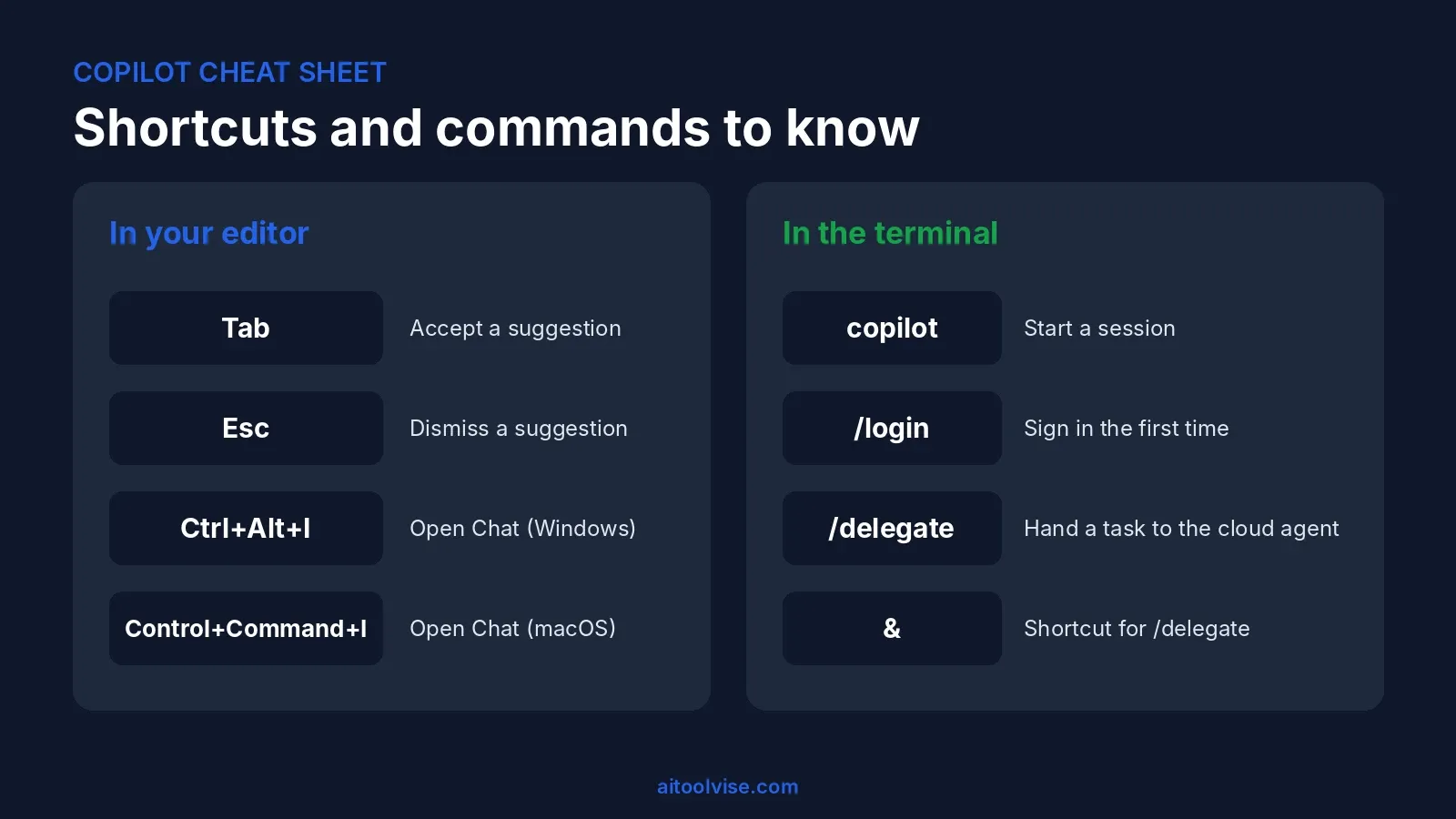
Next, open Copilot Chat with Ctrl+Alt+I on Windows and Linux or Control+Command+I on macOS. Open any file and type “what does this file do”. Then select a single line and ask “explain this line”. Honestly, those two prompts teach you more about the tool than any docs page, especially in a codebase you didn’t write.
One thing to know: telemetry is on by default on the Free plan. Don’t like that? Set telemetry.telemetryLevel to off in settings.
How to Use GitHub Copilot in Visual Studio
Working in .NET or C++? Then Visual Studio is probably where you spend your day, and the good news is that newer versions come with Copilot already built in. Most of the time there’s nothing to install. Log in with your GitHub account (the account menu in the top right is where I’d look first) and open Copilot Chat from the menu bar or the Copilot icon.
I can’t give you the exact menu path, because Visual Studio keeps renaming things between releases. If you can’t find chat, run the Visual Studio Installer and see whether you’re on a current version. Once it’s open, it works much like it does in VS Code. Ask about the file you’re in, highlight some code and ask for a fix, or try agent mode when a change touches several files.
How to Use GitHub Copilot in IntelliJ and PyCharm
JetBrains tools don’t have Copilot built in. You add it as a plugin.
- Open Settings and go to Plugins.
- Search the Marketplace for GitHub Copilot and install it.
- Restart the IDE when asked.
- Sign in to GitHub when the plugin prompts you.
It’s the same plugin for IntelliJ IDEA, PyCharm, WebStorm and the others, so you only do this once per IDE. GitHub has kept adding agent features to it through 2026, including a Copilot CLI agent and a unified sessions view. If what you see doesn’t match these steps, update the plugin first and look again.
How to Use GitHub Copilot in SSMS
This one surprises people, but yes, SQL Server Management Studio supports Copilot. Microsoft’s docs list what you need:
- SSMS 22.
- Open the Visual Studio Installer, choose Modify, and tick the AI Assistance workload.
- Install, open SSMS, and sign in with a GitHub account that has Copilot access. The chat window even offers “Sign up for Copilot Free” if you don’t have one yet.
Microsoft’s SSMS installation page explains the status labels you might see: Active, Inactive, Unavailable and Not installed. And a warning from me: don’t run Copilot-written SQL on a production database until you’ve read it line by line. Try it on a copy.
Copilot Chat: Ask, Edit and Agent Mode
Tab-completion is the bit everyone knows. Chat is where it gets fun.
Ask mode answers questions. Use it to understand code, chase down an error, or plan an approach. Nothing in your files changes.
Edit and agent mode do change your code. In agent mode you pick Agent in the chat panel, describe the task, wait, then review the changes and accept them with your IDE’s controls. The agent can touch several files at once, so that review step matters. I read every diff before accepting, even when it looks fine at a glance.
Some prompts that work:
- “Add input validation to this form and keep the existing style”
- “Write unit tests for this function, including edge cases”
- “Why does this throw a null reference error on line 40?”
Be specific. “Fix my code” gets you a shrug. “This function returns undefined when the list is empty, fix it without changing the signature” gets you a fix.
Shortcuts worth memorizing
| Action | Shortcut |
|---|---|
| Accept a suggestion | Tab |
| Dismiss a suggestion | Esc |
| Open Copilot Chat (VS Code) | Ctrl+Alt+I / Control+Command+I |
Learn those three and stop there. Seriously. In other IDEs, find Copilot Chat in the menu bar or sidebar, and use the keymap settings if you want to rebind anything.
How to Use GitHub Copilot in the Terminal (CLI)
Copilot CLI works on every plan, Free included. Pick the install line for your system:
npm install -g @github/copilot        # needs Node.js 22+
winget install GitHub.Copilot         # Windows
brew install --cask copilot-cli       # macOS
curl -fsSL https://gh.io/copilot-install | bash   # macOS / Linux
Windows needs PowerShell v6 or newer. Run copilot inside your project folder and type /login the first time. You can also sign in with a fine-grained token that has the “Copilot Requests” permission. GitHub’s CLI install guide covers the options.
My favorite bit is /delegate, by far. Start a prompt with & and the task goes to the cloud agent, which works in the background and opens a draft pull request when it’s done. You keep working meanwhile. GitHub documents it on its delegate tasks page.
How to Use GitHub Copilot on GitHub.com
Some jobs don’t need an editor at all, funnily enough. On github.com you can open Copilot chat to ask about a repository, and have it write descriptions of pull request changes. The coding agent is the bigger deal: assign it a task and it researches, plans, makes the changes and opens a pull request for you.
Treat that pull request like one from a new hire. Read it, run the tests, leave comments. It’s quick. But it has no idea about your unwritten rules unless someone wrote them down.
How to Use GitHub Copilot with Cursor or Claude Code
These two questions come up all the time, so here’s the short version.
Cursor. It’s a fork of VS Code with its own AI built in. I couldn’t find an official statement that the Copilot extension is supported there, so I wouldn’t build a workflow on it. Choosing between the two? Read our Cursor vs GitHub Copilot comparison. Going with Cursor? The Cursor AI how-to covers setup.
Claude Code. Two honest answers, really. Copilot offers Claude models in its model picker on some plans, so you can use Claude without leaving your editor. Or run Claude Code in a terminal next to your editor; they don’t get in each other’s way. Our Claude Code vs GitHub Copilot breakdown explains where each one wins, and the Claude Code how-to covers that setup. Picking your first tool? The best AI coding tools roundup lines them up side by side.
How to Use GitHub Copilot for Python (and Other Languages)
Of all the languages, Python seems to be where Copilot is most comfortable. Open a .py file, type a descriptive function name or a quick comment, and let it write the body. A comment like # read a CSV and return rows where status is "active" is often all it needs.
GitHub’s overview page never lists which languages are supported, so I can’t point you to an official list. From what I’ve seen people report, the popular languages work well, while rare languages and very new frameworks are hit or miss. It doesn’t matter which one you use. Run what it writes and read it before you trust it.
How to Use GitHub Copilot Effectively: Habits That Help
Context comes first, since it shapes almost everything Copilot gives you. It reads the files you have open, so leave the interface, the implementation and the tests open and close anything unrelated. Next, write the function signature before you ask for the code. A clear name and a one-line comment will do more than a vague prompt. And you don’t have to accept a whole suggestion. Take the half that’s right and carry on typing.
Whatever you accept, test it. Suggestions sound confident even when they’re wrong, and that’s the trap. Keep secrets out of the picture too, so no API keys or passwords in files Copilot can see. And if you work in VS Code, try typing /init in chat. It generates starter custom instructions for your project, which saves you repeating yourself.
On paid plans, credits matter too. Bigger context and heavier reasoning burn more of them, and unused credits don’t roll over at month end. Watching your spend? The pricing review explains how to set a budget.
GitHub Copilot vs ChatGPT: Which Should You Use?
Both can help you with code, but they’re not really competing for the same job. Copilot lives in your editor. It can see the files you have open and it changes code right where you’re working. ChatGPT is a general chat assistant, so it’s the one I’d open to understand a concept, weigh two approaches or talk through a design before writing anything.
Is Copilot just ChatGPT underneath? Not really, no. It started on OpenAI’s Codex model in 2021, and today it’s multi-model, with Claude, Gemini, GPT and others available depending on your plan. I know plenty of developers who let Copilot do the typing and a chat assistant do the thinking. If you want that second tool, our ChatGPT vs Claude comparison is a decent place to begin.
Common Problems and Quick Fixes
Nothing showing up? Look at the status bar icon first, make sure you’re signed in, and check you haven’t used up your monthly allowance. Suggestions bad? That’s usually a context problem, so open the related files, write a clearer comment, or move to chat and describe what you need. Can’t find chat at all? Look in the menu bar or sidebar, then update the plugin or extension. And if you’ve run out of credits or completions, you can upgrade, set a budget, or wait, since the reset happens at 00:00 UTC on the first of the month.
Done here? Then the home page lists our other tool guides and reviews.
Affiliate Disclosure
Some links on this page may be affiliate links. If you sign up through one, AIToolVise may earn a commission at no extra cost to you. We only recommend tools we’d point a friend toward, and our opinions are our own. Plans and prices change often, so confirm them on GitHub’s plans page before you buy.
Frequently Asked Questions
How do I use GitHub Copilot?
Install it in your editor, log in with GitHub, and start writing code. Suggestions show up in grey and Tab accepts them. Stuck on something bigger? Open the chat panel and ask like you'd ask a coworker.
Is GitHub Copilot free, really?
Sort of, yeah. There's a free tier, but it's small: 2,000 completions a month and a limited amount of chat. If you code every day you'll probably run into the wall by the third week. Fine for poking around though.
How do I use GitHub Copilot for free?
Log in to GitHub from VS Code and choose the Free plan. That's it, no card asked. Students should skip this and apply for the Student plan, which is the better deal by a mile.
How do I use GitHub Copilot in VS Code?
Click the Copilot icon at the bottom of the window, pick "Use AI Features", then sign in. Now just type. Want to chat? Ctrl+Alt+I on Windows, Control+Command+I on a Mac.
How do I use GitHub Copilot in Visual Studio?
Newer versions already include it so you don't need to install anything. Just sign in, open the Copilot Chat window and type your question. If you can't find it, your version of Visual Studio is probably too old.
How do I use GitHub Copilot in IntelliJ or PyCharm?
It's a plugin. Settings, Plugins, search "GitHub Copilot", install, restart. The same one works in PyCharm, IntelliJ and the other JetBrains tools, which is handy.
How do I use GitHub Copilot in SSMS?
That might sound odd. It really exists. First you need SSMS 22. Then open the Visual Studio Installer, choose Modify and tick the AI Assistance workload. Next sign in with GitHub. Finally the chat window should show up.
How do I use GitHub Copilot in the CLI?
Run npm install -g @github/copilot (Node.js 22 or newer), or grab it through winget or brew. Then type copilot inside a project folder. First time only, you'll need /login.
How do I use GitHub Copilot in Cursor?
I wouldn't. Cursor has its own AI baked in and I couldn't find anything official saying the Copilot extension is supported there. Want Copilot? Use plain VS Code instead.
How do I use GitHub Copilot with Claude Code?
You've got two choices. Copilot Chat can use Claude models on some plans, or you can simply run Claude Code in a terminal while Copilot sits in your editor. No conflict between them, just two subscriptions.
How do I use GitHub Copilot in GitHub itself?
You can use GitHub Copilot directly on github.com by opening the Copilot chat. Just type your request. Describe the issue you want to solve and let the coding agent work in the cloud. It will generate a pull request for you. Always review the pull request carefully before merging it.
How do I use GitHub Copilot for Python?
Same as any language. Open a .py file, write a function name or a comment, see what comes up. Python is one of the languages it does best, but test what it writes.
Is GitHub Copilot just ChatGPT?
No. Back in 2021 it ran on OpenAI's Codex, true, but now you can pick from Claude, Gemini, GPT and others. And it sits in your editor looking at your actual files, which ChatGPT doesn't do.
GitHub Copilot vs ChatGPT: which is better for coding?
Depends what you're doing. Typing code all day, Copilot. Asking why something works, or talking through a design, ChatGPT feels nicer. A lot of people end up paying for both.
Is GitHub Copilot good for beginners?
GitHub Copilot can be good, for beginners. It comes with risks. It writes code that you might not fully understand and it doesn't explain itself. So always ask it to explain what it just wrote. Treat it like a tutor, not a shortcut. Learning the fundamentals is still important.
What do students get with GitHub Copilot?
Verified students get the Student plan for free, with unlimited completions and auto model selection. Third-party agents aren't included, and the credit allowance is smaller than Pro's.